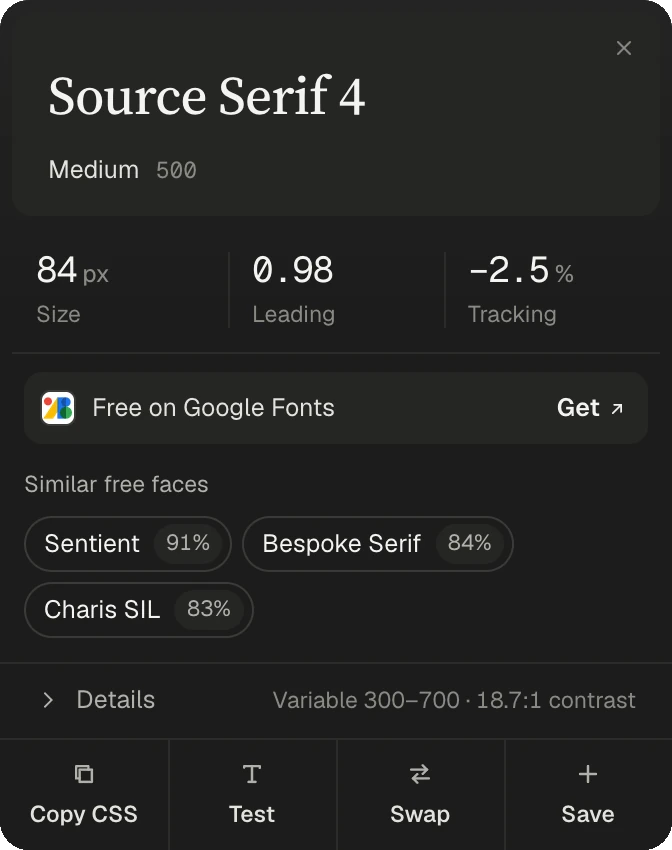
The quick way: add Fontsight, press ⌥⇧F (Alt+Shift+F on Windows) and point at the text. Without an extension, right-click the text, choose Inspect, and look for the font that rendered: where it is in each browser is below.
Every desktop browser can tell you, in its developer tools. It takes a few clicks and shows the font’s name, but not who made it or what it costs.
Chrome, Edge and Brave
Right-click the text and choose Inspect.
In the panel that opens, select the Computed tab on the right.
Scroll to the bottom, to Rendered Fonts. That’s the font the browser drew with, and how many letters it drew.
The font-family line higher up is the site’s list of choices, not the answer.
Firefox
Right-click the text and choose Inspect.
In the panel on the right, open the Fonts tab.
Fonts Used lists the font that drew the text you selected, with its file.
Firefox can also show every font on the page, under All Fonts on Page.
Safari
Turn on the developer tools: Safari → Settings → Advanced → Show features for web developers.
Right-click the text and choose Inspect Element.
In the sidebar on the right, open the Font panel to see the font and its styles.
On older Safari, the setting is called Show Develop menu in menu bar.
Why font-family can mislead you.
The font-family line is a list of choices. The browser draws with the first one it has, letter by letter, so the same page can render in different fonts on different computers.
And the first name is often made up: a site can load any font as “brand-sans”. To know the font, read the file the page loaded. That’s what Fontsight does.
The quickest way is a font finder extension. Add Fontsight to Chrome, press ⌥⇧F on a Mac or AltShiftF on Windows, and point at the text: it names the font that rendered, who made it and the CSS to use it. Without an extension, right-click the text, choose Inspect, and look under Computed → Rendered Fonts in Chrome, the Fonts tab in Firefox, or the Font panel in Safari.
How do I find a font on a website without an extension?
Use the browser’s inspector. In Chrome or Edge: right-click the text, choose Inspect, open the Computed tab and scroll to Rendered Fonts. In Firefox: Inspect, then the Fonts tab. In Safari: turn on Show features for web developers in Settings → Advanced, then Inspect Element and the Font panel.
Why does Inspect show a list of fonts instead of one?
The font-family line is the site’s list of choices, in order. The browser goes down the list and draws with the first font it has, letter by letter, so the answer depends on your computer and on which fonts loaded. Rendered Fonts in Chrome, or Fonts Used in Firefox, shows which one won. Fontsight shows the winner and crosses out the ones skipped.
What if the site gives its font a made-up name?
Many sites load a font under their own name, such as “brand-sans”, so the inspector shows that name and not the real one. Fontsight reads the font file the page loaded and names it from the inside: the family, its maker, version and licence.
Can I find the font in a picture, logo or screenshot?
Text in an image has no font for the browser to report, so neither the inspector nor Fontsight can read it. Use an image matcher such as WhatTheFont or Font Squirrel’s Matcherator: upload a crop of the letters and it suggests fonts that look alike.
Can I find the font on a website on my iPhone or Android phone?
Not easily: phone browsers have no inspector, and Chrome extensions only run on a computer. Open the page on a computer instead. On this site’s phone version, the Add to Chrome button sends the link to you so you can pick it up there.
Which browsers does Fontsight work in?
Chrome, and the browsers that install from the Chrome Web Store, such as Edge, Brave and Arc. In Edge, choose “Allow extensions from other stores” when it asks, then click Add to Chrome.
Skip the inspector.
Point Fontsight at any text on any website. It names the font, who made it and the CSS to use it, and finds a free look-alike if it’s paid.